Bring your stock and clients in,
in a few minutes.
You don’t have to retype anything or reshape your spreadsheet to match ours. Drop in the file you already have, and Case reads it into WristBook. You check every row before anything goes in.
Where to find it
- On your dashboard, the first time you sign in: a card at the top with Import stock and Import clients. It stays there until you’ve brought something in.

Any time after that:
- In Inventory, open the menu next to Log inventory and choose Import from a file.
- Or on the Migration page, with Import my data.
- Or go straight to wristbook.io/import once you’re signed in.
- 1
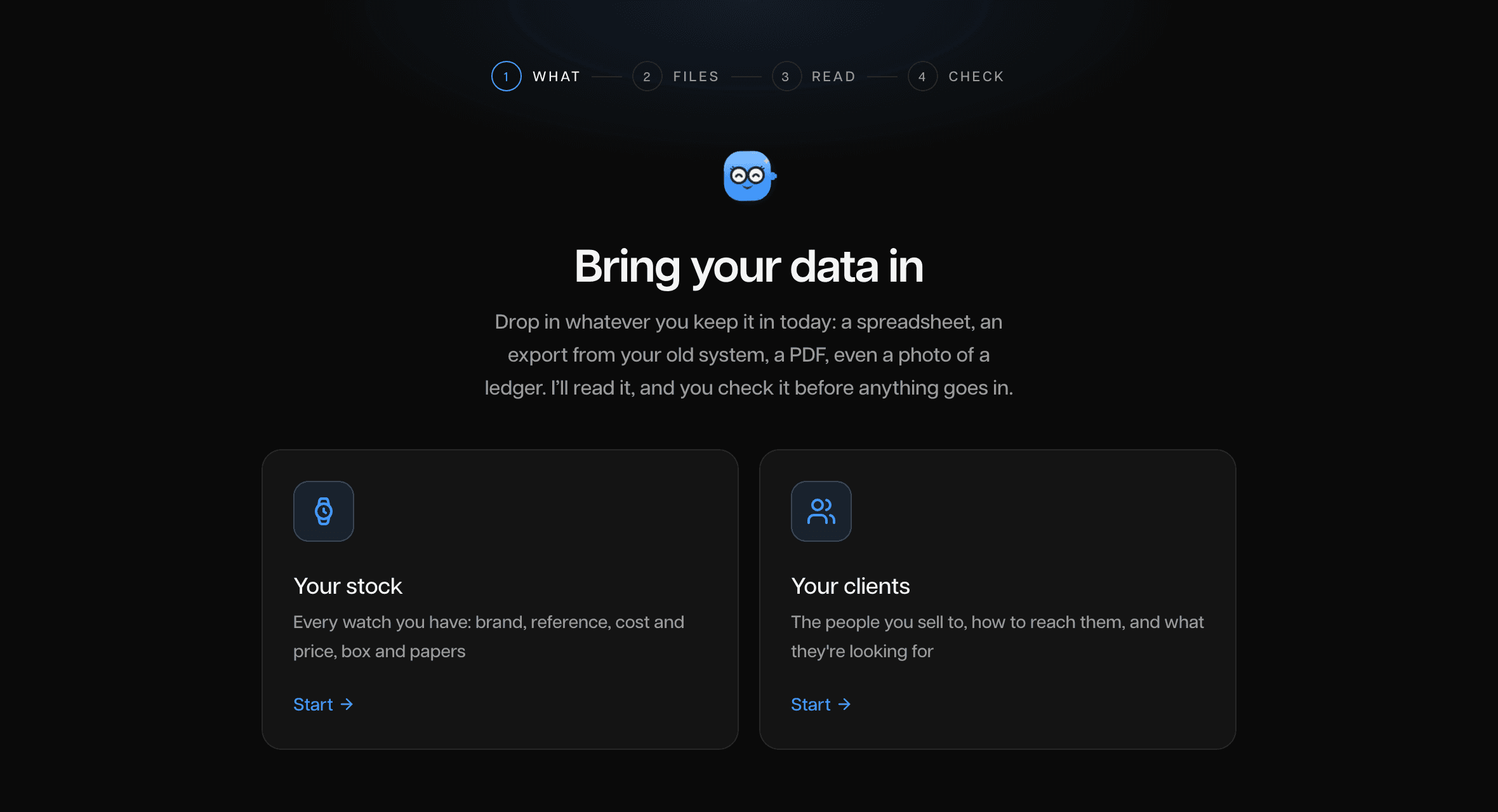
Choose what you're bringing in
Your stock (watches, plus jewelry, bags, loose stones and accessories if you sell them) or your clients. Do one, then come back for the other.
- 2
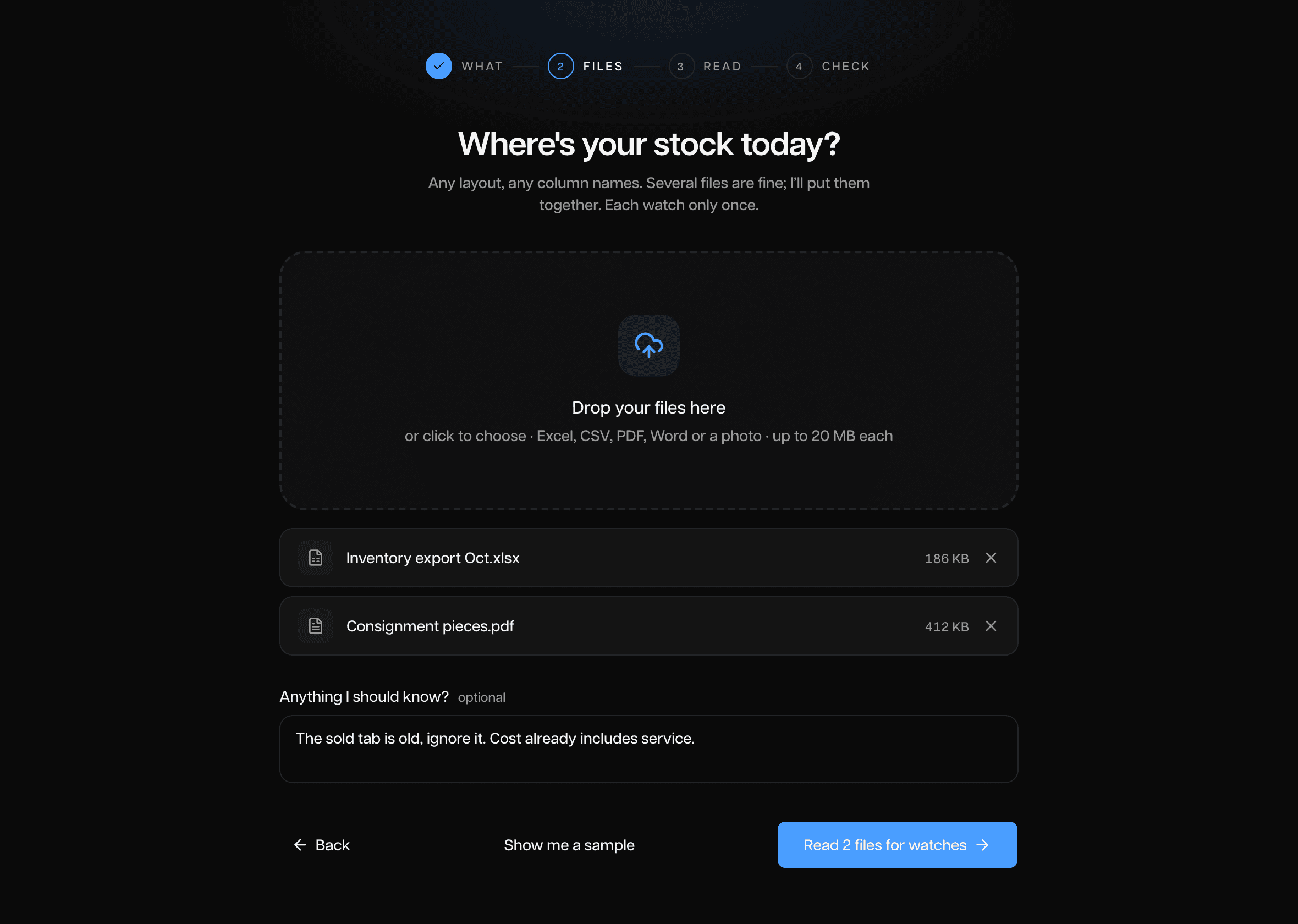
Drop in your files
Whatever you keep it in today: an Excel or CSV export from your old system, a PDF, a Word document, even a photo of a ledger. Any layout and any column names. Up to five files at once, and Case puts them together. If there’s something to know, like “ignore the sold tab”, say it in the box.
- 3
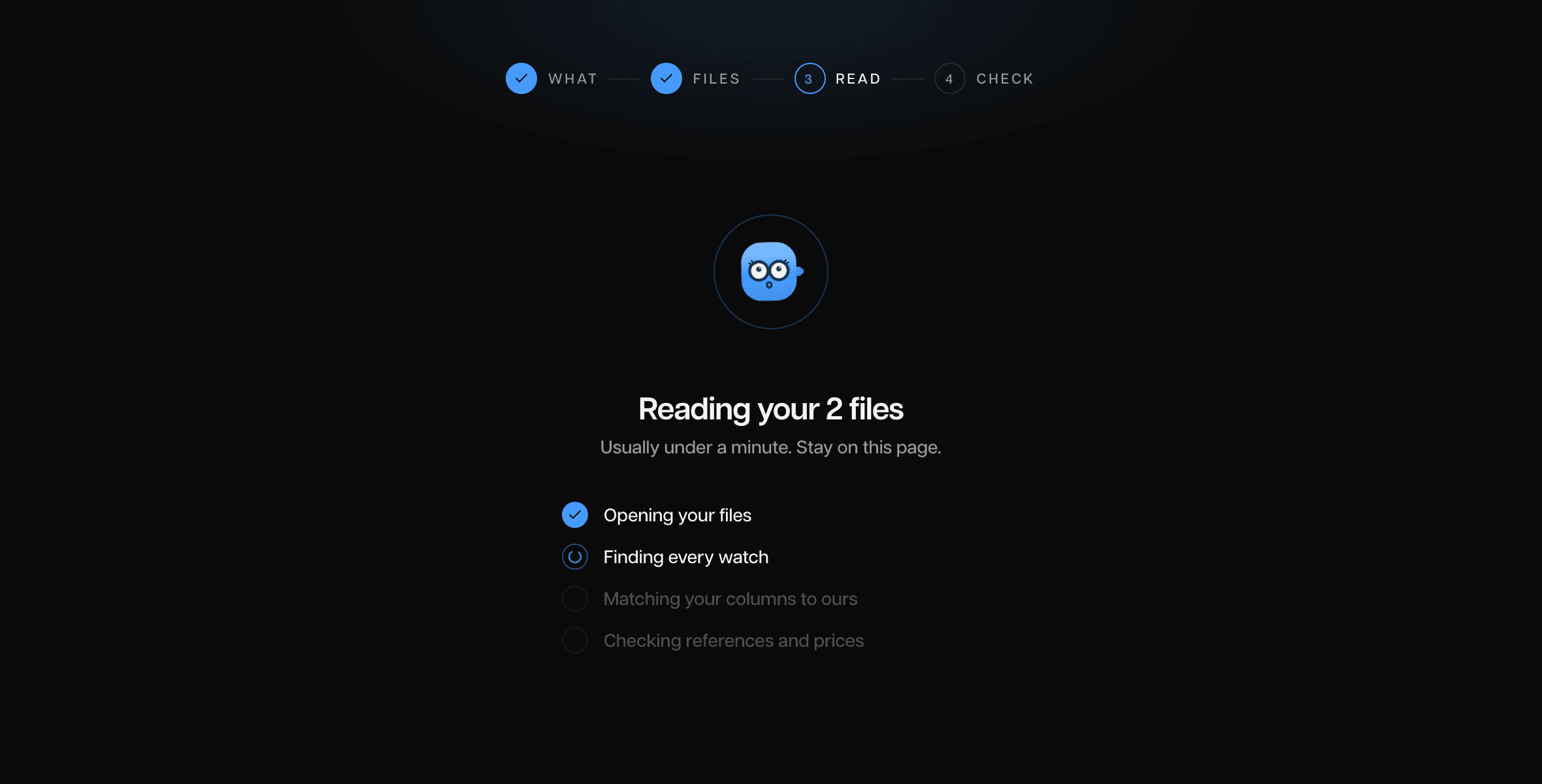
Case reads them
Usually under a minute. Case finds every watch or client, matches your columns to WristBook's, and checks references and prices. Stay on the page while it works.
- 4
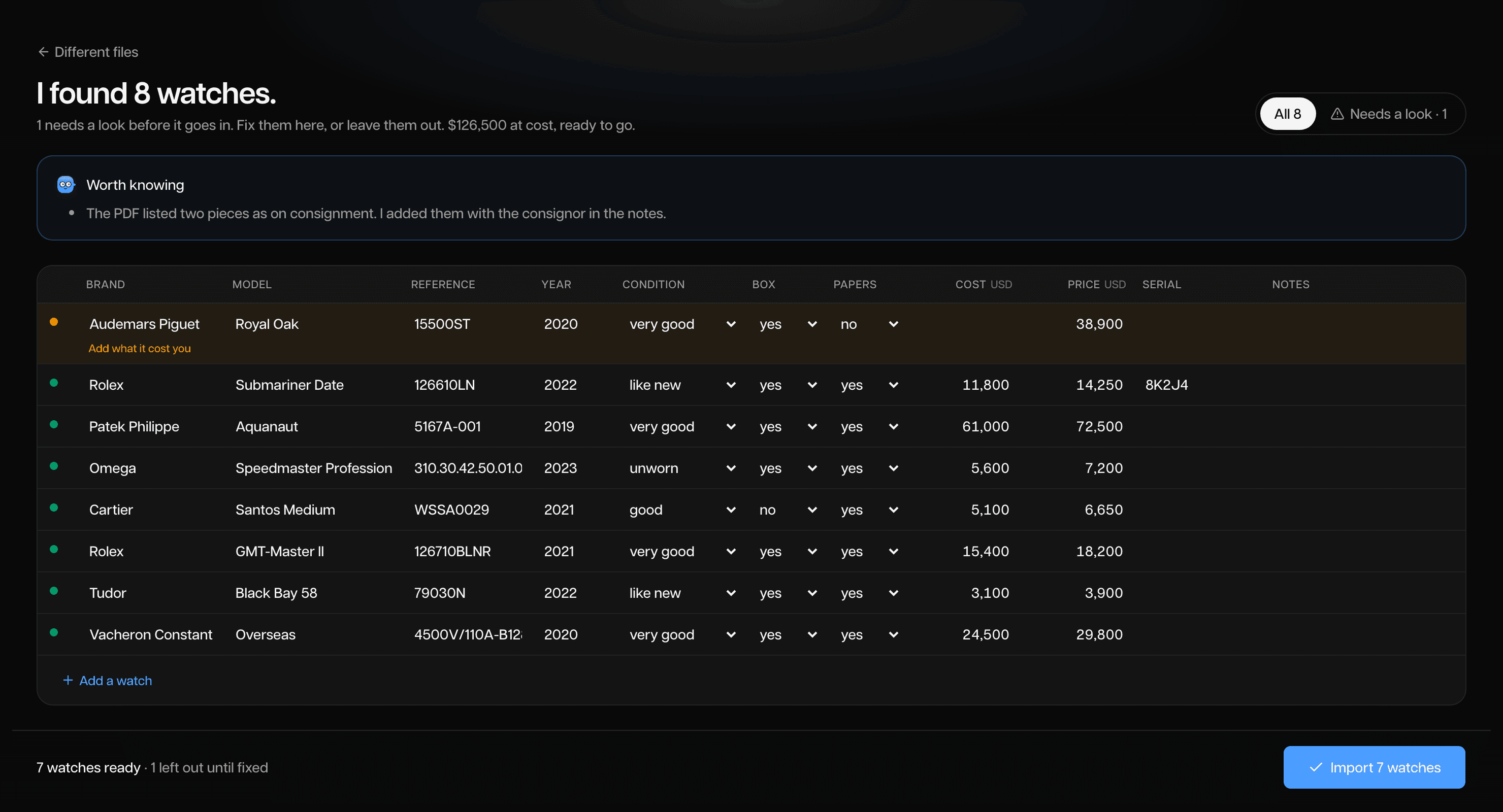
Check everything before it goes in
You see every row Case found, and you can change any of it: brand, model, reference, condition, box and papers, cost, price, notes. Anything missing something comes first, in amber, with what to fix (“Add what it cost you”). Fix it in place, or leave it out. Missed something? Add it with Add a watch at the bottom.
- 5
Import
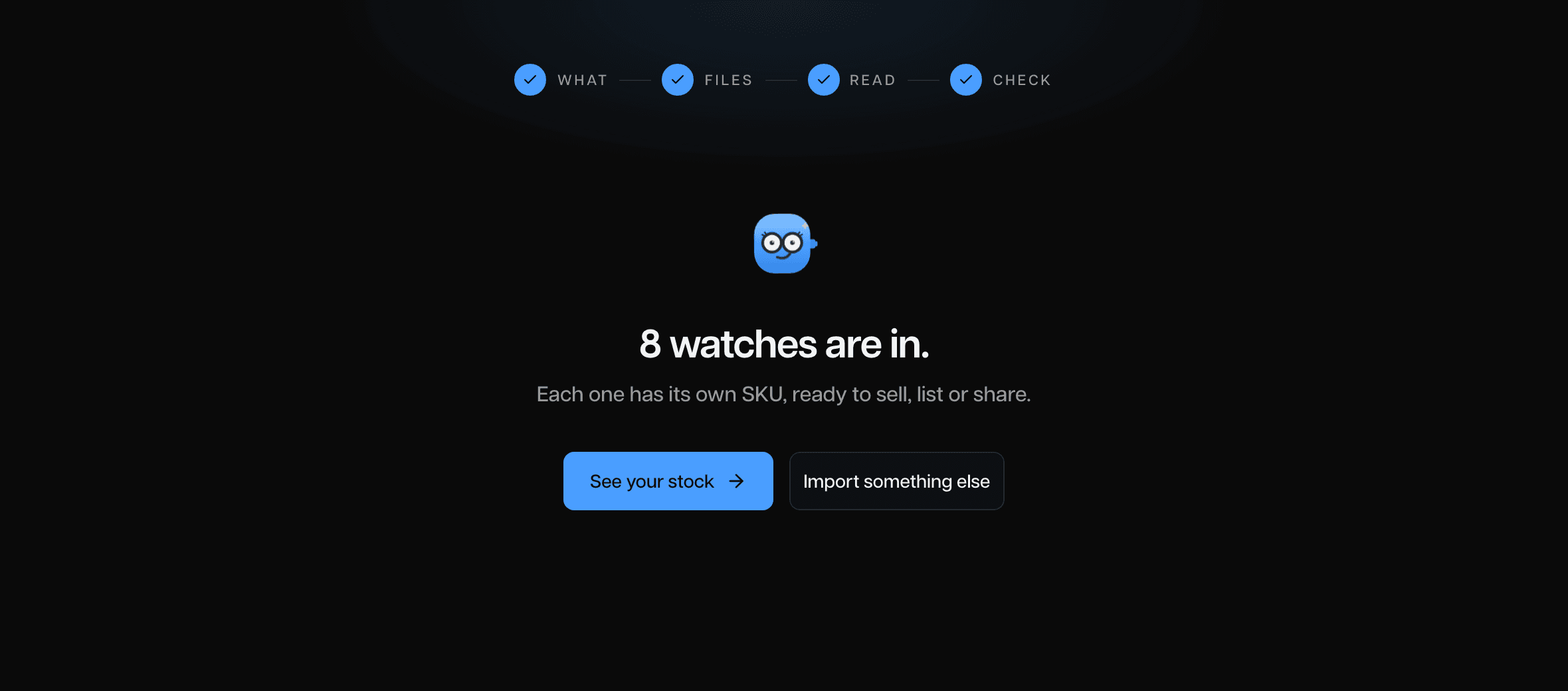
Everything that's ready goes in at once, each piece with its own SKU, ready to sell, list or share. Clients come in with what they're looking for, and Case tells you straight away who matches something already in your cases.
Your past sales and expenses
Sales and expenses go straight into your books, your profit and your tax figures, so they don’t go through the importer above. Our team brings them in with you as part of your done-for-you migration once you’re on board, and checks the numbers match. If you’d rather bring your past sales in yourself, there’s a template for that.
- 1Download the sales template and open it in Excel or Google Sheets.
- 2Fill in one row per sale: brand, reference, model, the buyer’s name, sale price, cost, fees, shipping, commission, the sale date (YYYY-MM-DD), how they paid, and any notes. Only the brand is required. Keep the column names as they are.
- 3Save it as a CSV. In WristBook, go to Deals, press Import CSV next to Record deal, and choose your file.
- Each row comes in as a past sale with its profit and fees. The buyer’s name is kept in the sale’s notes.
- Past sales don’t touch your current stock, so nothing in your inventory is marked sold.
- Upload each file once: uploading the same one twice adds those sales twice.
- Write every sale date as YYYY-MM-DD, like 2026-06-28. A date written any other way (28/06/2026), or left blank, comes in as the day you upload it.
- Expenses come in with our team during your done-for-you migration.
Your data stays yours
The AI only reads your file and lays it out in WristBook’s columns, the same way a person retyping it would. Here’s exactly what happens to it.
- Your files aren't keptThey’re read once, to find your watches or clients, and never stored. WristBook keeps only the file’s name and how many rows it had, as a record of the import.
- The AI doesn't learn from itThe reading is done by Claude, made by Anthropic, through their business service. Anthropic doesn’t use what you send to train its AI.
- Nothing goes in until you say soWhat Case reads is shown only to you, to check. Only the rows you import are saved, and anything you leave out is discarded.
- Only your business sees itOnce imported, it lives in your WristBook like everything else: private to your business, encrypted on the way in, and visible only to your team.
Good to know
- Bring each file in onceImporting the same file twice adds the pieces twice. If you need to add more later, import just the new ones.
- Big listsUp to 500 watches or 1,000 clients at a time. Split anything bigger into a few files.
- Rows that need a lookThey’re left out until fixed, so nothing half-finished gets in. Fix them in the table, or bring them in later.
- Who can importOwners and managers. Anyone else on the team can hand the file to one of them.
- Beyond watchesJewelry, bags, loose stones and accessories come in as their own type, with their own details: metal and purity, size and hardware, carat and clarity. That’s when your plan includes them.
- Rather we did it?If your data’s spread across systems, reply to your onboarding email and we’ll do it with you.
Links to the importer once you’re signed up and signed in.